

KubeBlocks for
Milvus
Milvus is a cloud-native vector database designed for billion-scale similarity search. With GPU-accelerated indexing, hybrid search capabilities, and multi-tenancy support, it powers enterprise AI applications from semantic search to generative AI.
Supported versions
Available on
 AWS
AWS Azure
Azure GCP
GCP OCI
OCI Alibaba Cloud
 Rancher
 OpenShift
Databases
 MySQL
MySQL PostgreSQLOracle
 SQL Server
 Redis
Redis MongoDB
 ClickHouse
Vector & AI
 Qdrant
 Milvus
 Elasticsearch
Message queues
 RocketMQ
 RabbitMQ
 Kafka
KafkaOthers
 VictoriaMetrics
 InfluxDB
 etcd
etcd ZooKeeper
Extend database engines like plug-ins
KubeBlocks provides unified database operations through its addon-based architecture. With KubeBlocks Enterprise, access over 15 seamless integrations to scale your database services.
One control plane, consistent operations across all engines — powered by the addon mechanism.
Run Milvus with guided creation, scaling, monitoring, and recovery workflows
Operate Milvus with a real create wizard, dedicated compute and horizontal scaling dialogs, backup and restore workflows, live Cluster Monitor, IP whitelist review, task history, and credentials-workspace evidence backed by KubeBlocks Enterprise screenshots.
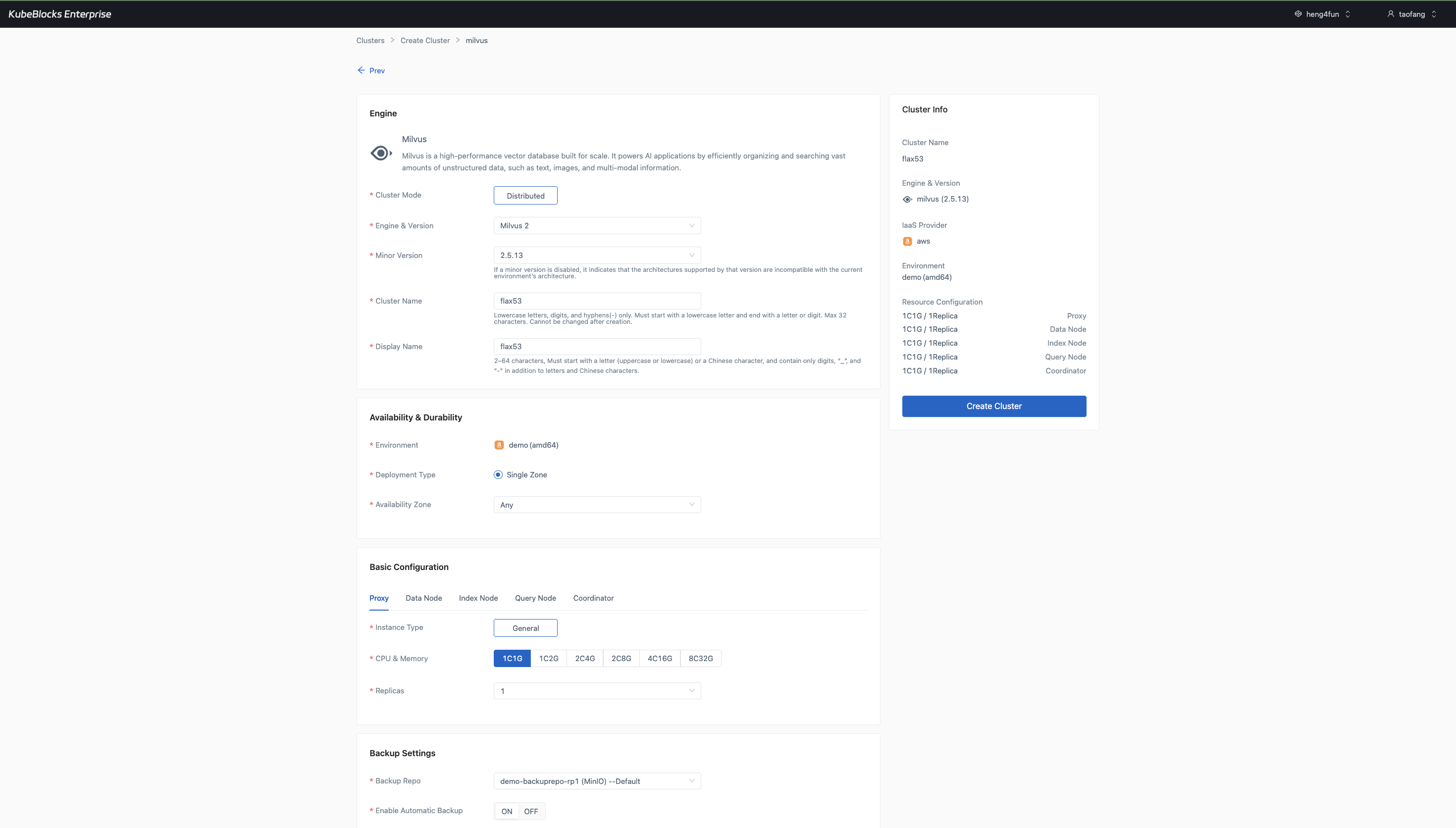
The create wizard keeps Milvus topology, dependency wiring, compute choices, backup settings, and project placement visible before provisioning.
Create Milvus clusters with distributed topology and dependency choices visible
Launch Milvus from a guided create wizard that keeps distributed mode, engine version, dependency-backed object storage and service references, component sizing, backup policy, maintenance window, and project placement visible before provisioning begins.
- Choose distributed Milvus, the target minor version, and the environment before users create the cluster.
- Review external Etcd, Kafka, and MinIO wiring alongside component classes, replicas, backup policy, and maintenance-window settings.
- Confirm the generated cluster summary before the deployment moves into the day-2 operations workspace.
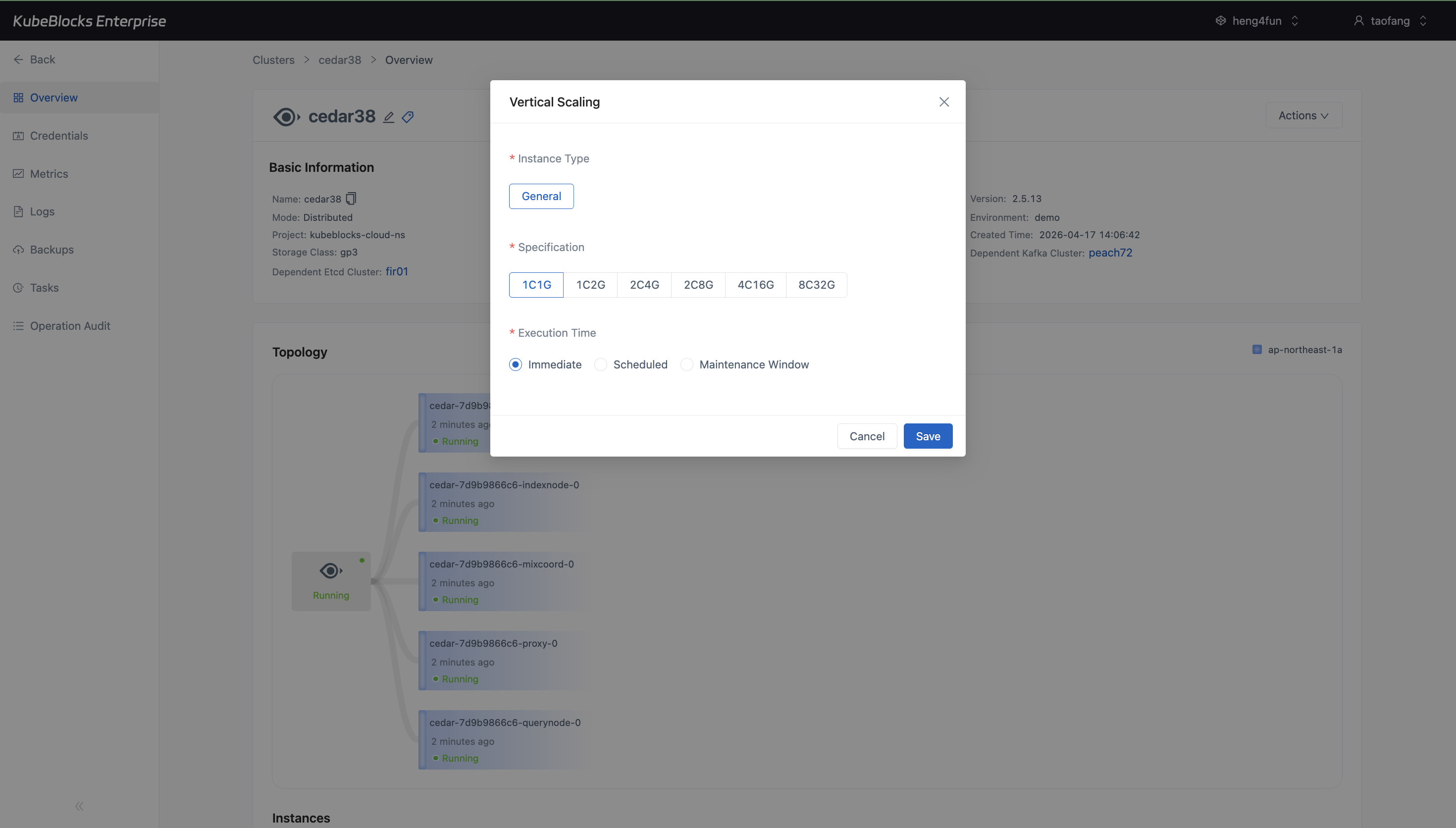
Vertical Scaling shows Milvus specification choices and execution timing before users save a compute change.
Resize Milvus compute from the Vertical Scaling dialog
Vertical Scaling gives users a dedicated place to compare Milvus CPU and memory profiles plus execution timing before a compute change is submitted.
- Open Vertical Scaling directly from the Milvus overview instead of relying on a task-status screenshot.
- Compare available specifications such as `1C1G`, `1C2G`, `2C4G`, and larger profiles before saving a compute update.
- Choose Immediate, Scheduled, or Maintenance Window execution timing before applying the change.
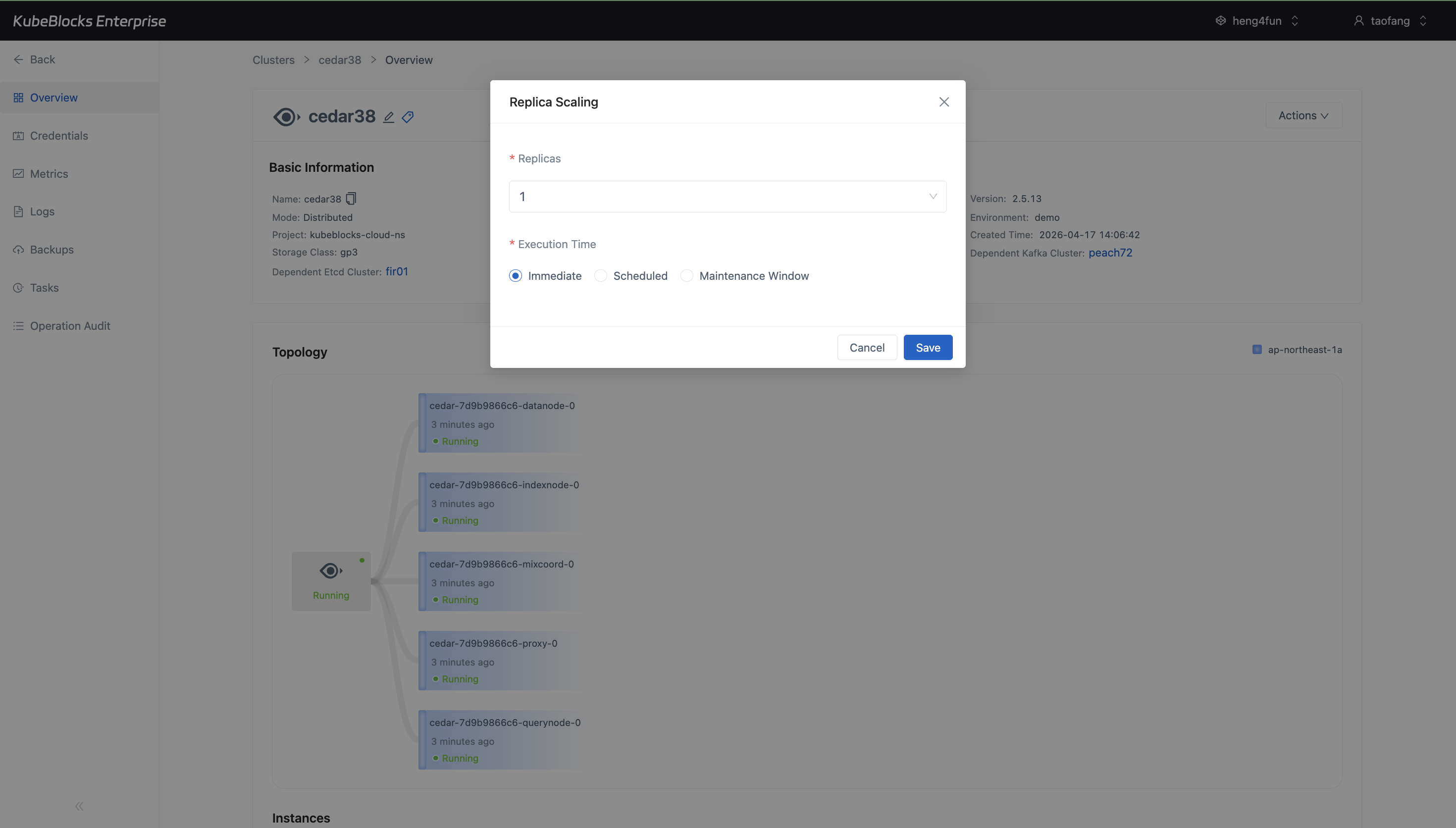
Horizontal Scaling keeps the current Milvus replica count and scheduling choices visible before users save a topology change.
Adjust Milvus replicas from a dedicated scaling dialog
Horizontal Scaling keeps topology changes separate from compute resizing, so users can review the current replica count and execution timing before saving a Milvus scale-out or scale-in change.
- Open Horizontal Scaling from the Milvus overview instead of using post-submit task status as proof of capability.
- Review the current replica count before changing Milvus distributed capacity.
- Choose Immediate, Scheduled, or Maintenance Window execution timing before saving a topology update.
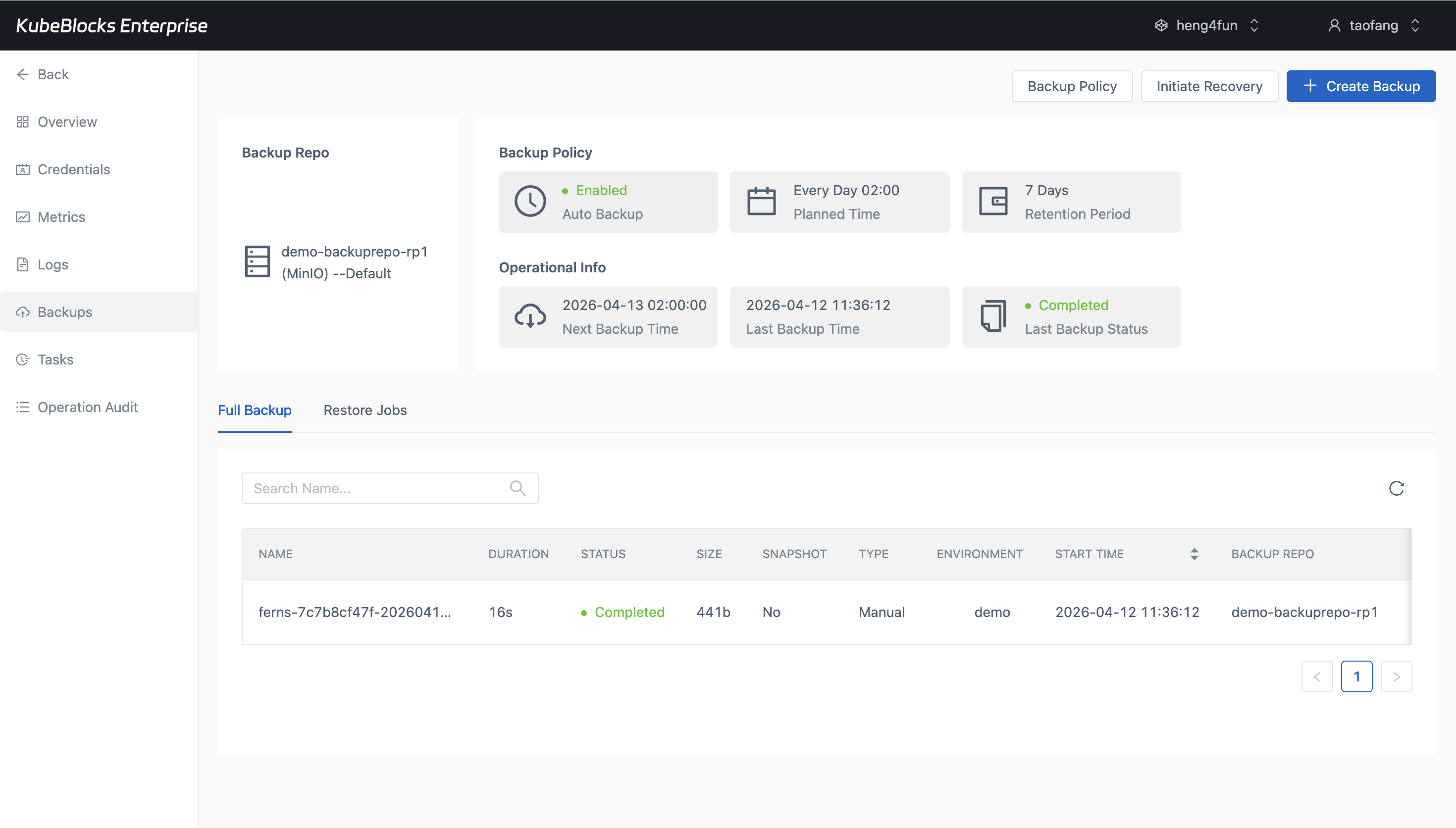
Backup history gives Milvus teams a real protection point before upgrades, tests, or recovery drills.
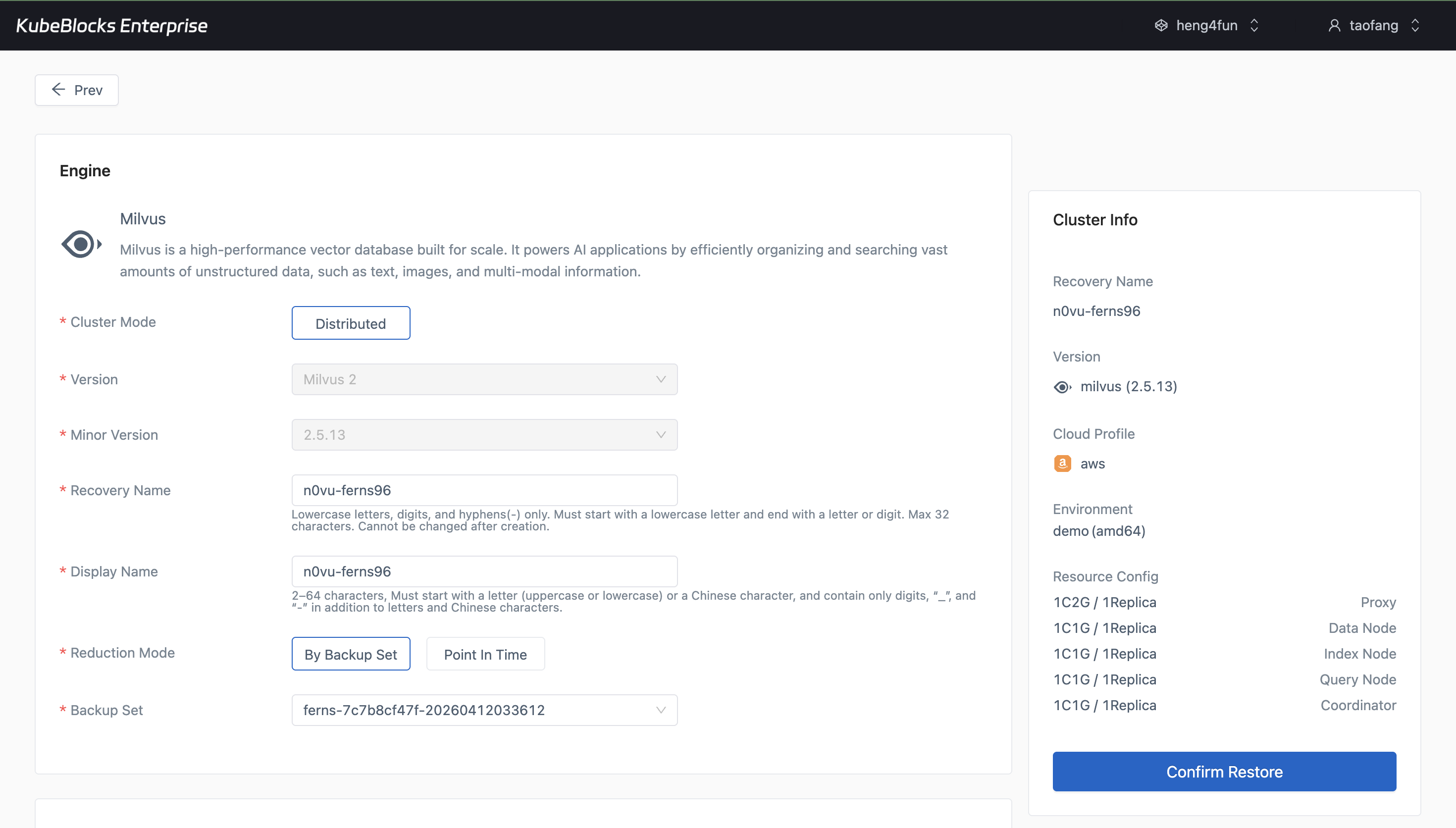
The restore wizard turns an existing Milvus backup into a guided recovery path for validation and recovery planning.
Protect vector data with backup and restore workflows
Use the Backups page to review protection points and open Restore from a completed backup whenever teams need validation or recovery options.
- Review completed full backups with repository, size, duration, and status visible in the cluster workspace.
- Open the restore wizard directly from a real Milvus backup set instead of rebuilding recovery inputs manually.
- Keep recovery planning separate from scaling, monitoring, and access-control workflows.
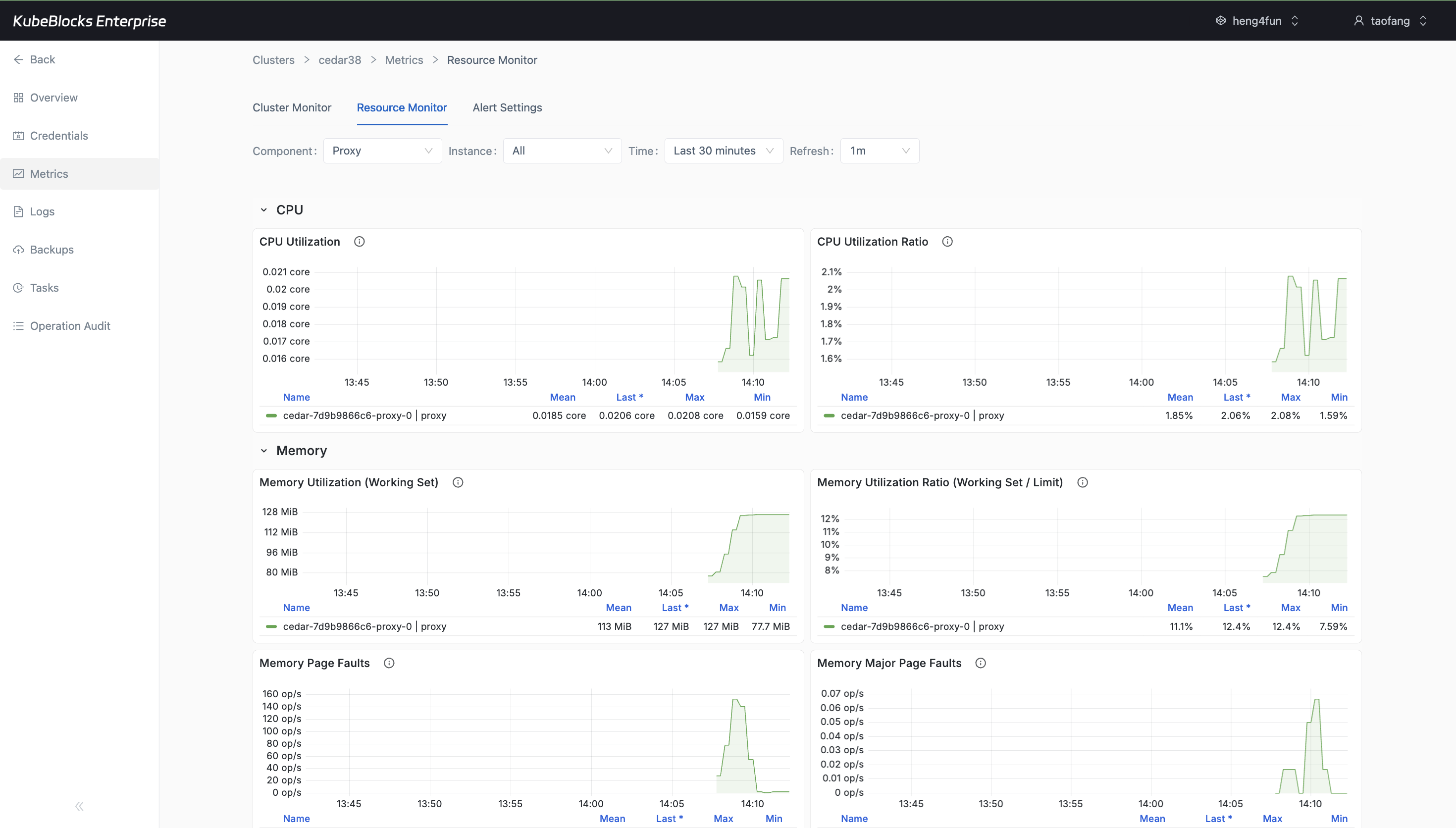
Cluster Monitor gives teams a live view into Milvus CPU and memory behavior after the metrics page finishes loading.
Track Milvus resource behavior from Cluster Monitor
Use Cluster Monitor to review live CPU and memory behavior for Milvus components from the same cluster workspace used for lifecycle and scaling actions.
- Watch CPU utilization and CPU utilization ratio for the selected Milvus component without leaving the cluster workspace.
- Review memory working-set charts and related resource indicators after the metrics page hydrates.
- Use live resource charts instead of a task-status page when validating current Milvus service behavior.
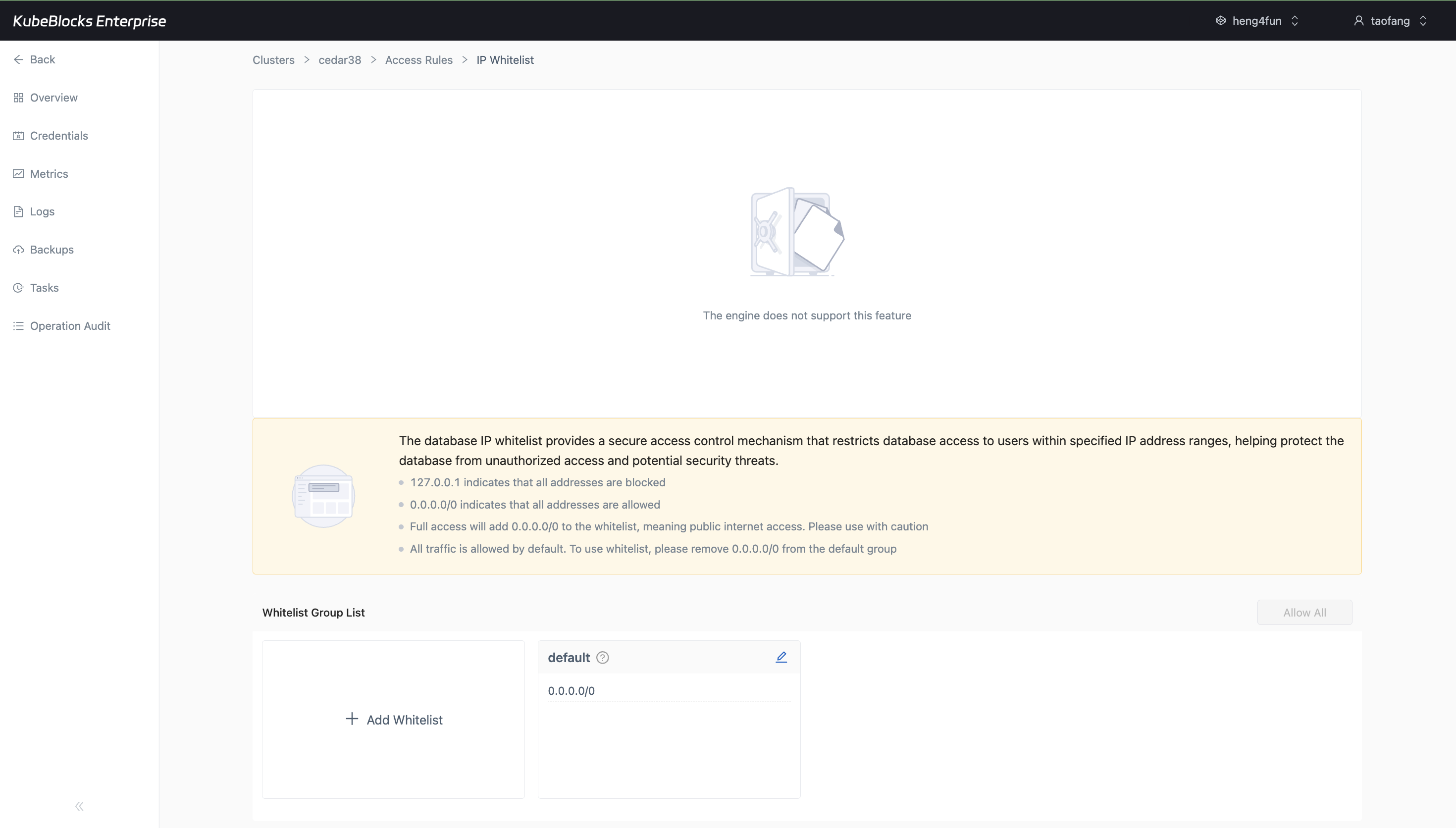
The IP Whitelist page shows Milvus access guidance, the default group, and the current support boundary in one workspace.
Review Milvus IP whitelist state from Access Rules
Access Rules keeps the IP Whitelist workspace reachable from the Milvus cluster and shows the current whitelist guidance, default group, and support state in one place.
- Open the IP Whitelist tab directly from the Milvus cluster workspace.
- Review the default whitelist group and the current `0.0.0.0/0` entry from the same page.
- Keep the visible engine-support warning in view when users evaluate current Milvus network-governance coverage.
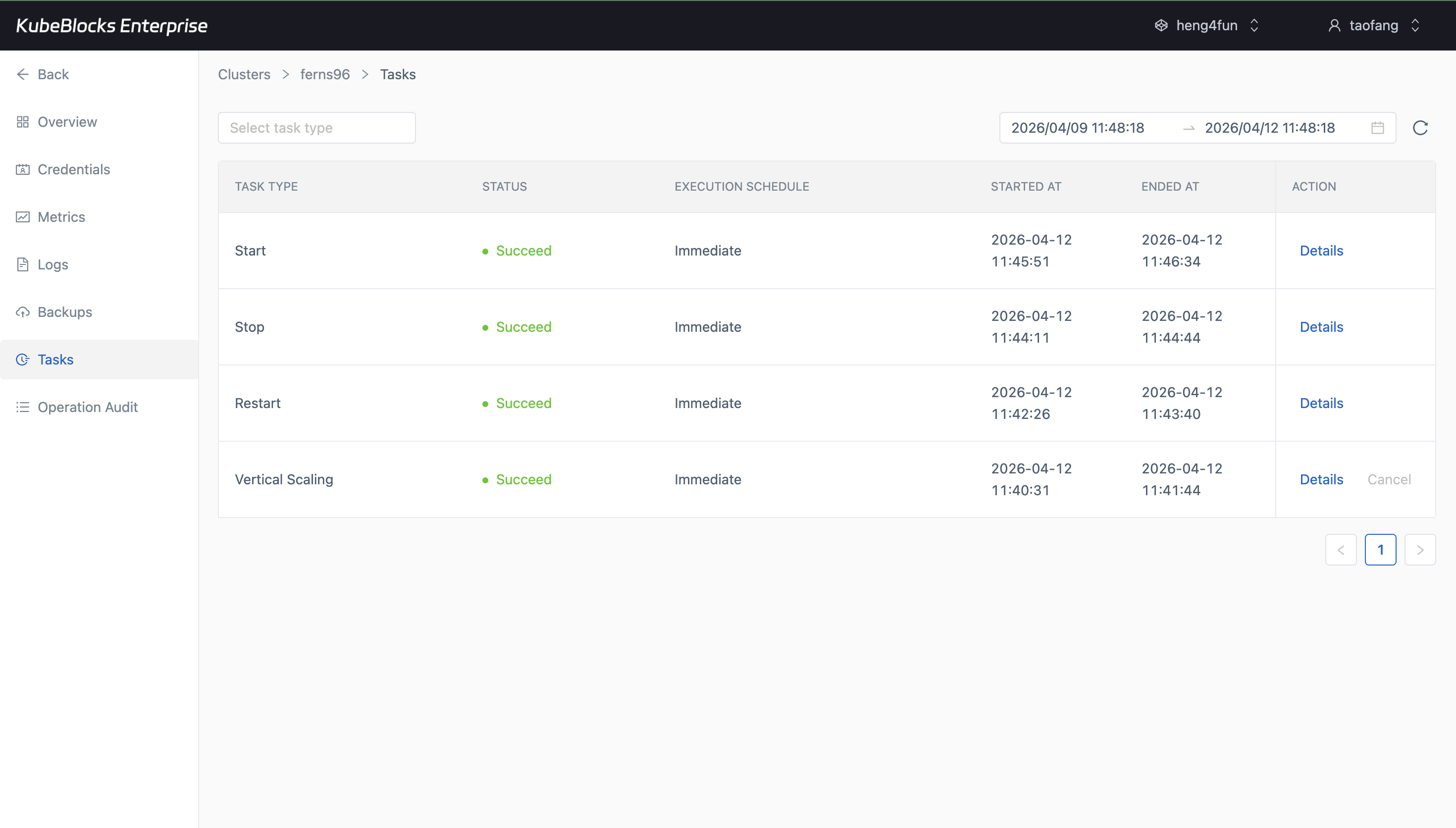
Task history gives teams a practical audit trail for Milvus lifecycle and capacity changes.
Keep Milvus operational history traceable from task records
Task history records lifecycle and scaling changes so teams can confirm what happened before handing the cluster back to application users.
- Review Start, Stop, Restart, and scaling actions from one operational timeline.
- Use task status as evidence that a Milvus day-2 action completed successfully.
- Keep change tracking separate from monitoring and data-protection workflows.
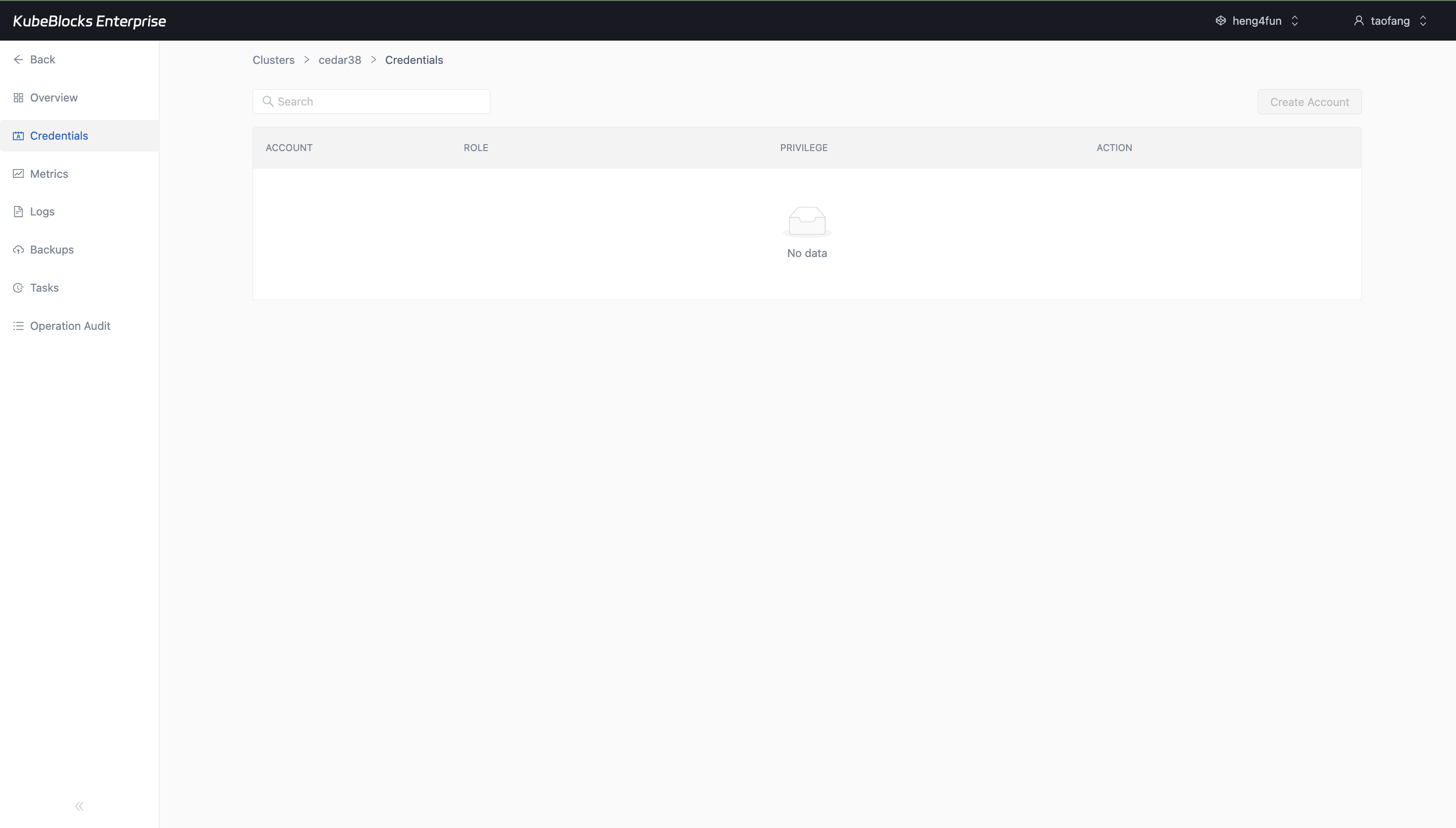
The Credentials workspace shows where Milvus account management starts and makes the tested build's disabled Create Account state explicit.
Use the Credentials workspace to find Milvus account controls
The Credentials page is where Milvus account management lives in the console. The tested cluster surfaced the account table and the Create Account entry point, while keeping the action disabled in this build.
- Open Credentials directly from the Milvus cluster workspace instead of switching into a separate console.
- Review the account table columns for account, role, privilege, and action from the same page.
- Use the visible Create Account control as the operational entry point, while keeping its disabled state explicit for the tested cluster.
Want full Day-2 operations on Kubernetes? Supported by KubeBlocks Milvus Kubernetes Operator →
Ready to build your own DBaaS on Kubernetes?
Talk to our team and see how KubeBlocks Enterprise can help you consolidate databases, strengthen security, and reduce operational costs.